Uncovering a Hidden SSID
Wireless lab showing why disabling SSID broadcast is not a security control: the network name is recovered from probe and association frames after a deauthentication.
Hidden SSID Discovery Lab Report
1.0 Introduction
This lab demonstrates how a hidden wireless SSID can be identified using wireless packet capture and analysis. A hidden SSID is configured by disabling SSID broadcast on the wireless router. Although this prevents the network name from appearing in normal Wi-Fi scans, the SSID can still be exposed when a legitimate client connects or reconnects to the access point.
The lab was conducted in a controlled environment using a Linksys router, an Alfa wireless adapter, Kali Linux, and Wireshark.
2.0 Objective
The objectives of this lab are:
-
To configure a Linksys router with a hidden SSID.
-
To place an Alfa wireless adapter into monitor mode using Kali Linux.
-
To capture wireless management frames using
airodump-ng. -
To analyze the captured packets in Wireshark.
-
To identify the hidden SSID from client connection traffic.
3.0 Lab Equipment
| Equipment | Description |
|---|---|
| Kali Linux | Operating system used for wireless monitoring and packet capture |
| Alfa Wireless Adapter | Wireless adapter used for monitor mode |
| Linksys Router | Access point configured with hidden SSID |
| Client Device | Phone or laptop used to connect to the hidden Wi-Fi |
| Wireshark | Packet analysis tool |
| Aircrack-ng Suite | Wireless security testing toolkit |
4.0 Router Configuration
The Linksys router was configured with the following wireless settings:
| Setting | Configuration |
|---|---|
| Wireless Band | 2.4 GHz |
| SSID / Wi-Fi Name | HiddenLab |
| SSID Broadcast | Disabled |
| Channel | 9 |
| Channel Width | 20 MHz |
| Security Mode | WPA2-Personal |
| Encryption | AES |
| Password | Password12345 |
| 5 GHz Band | Disabled for testing |
The 2.4 GHz band was selected because channel 9 belongs to the 2.4 GHz frequency range. The 5 GHz band was disabled to ensure that the client device connected only to the target 2.4 GHz wireless network.
5.0 Kali Linux Setup
The Alfa wireless adapter was connected to the Kali Linux machine. The wireless interface was verified using the following command:
iwconfig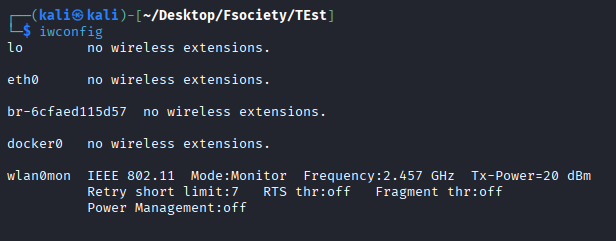
The adapter was then placed into monitor mode. Before enabling monitor mode, conflicting network services were stopped using:
sudo airmon-ng check killMonitor mode was then enabled using:
sudo airmon-ng start wlan0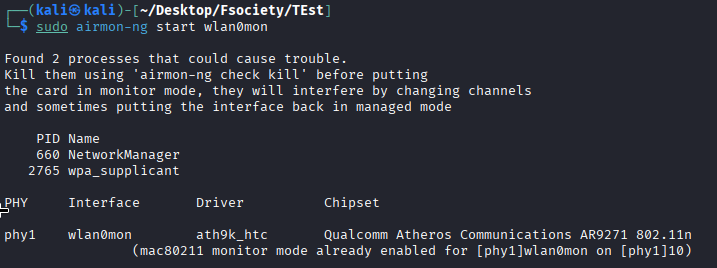
After enabling monitor mode, the interface changed to:
wlan0monThe interface status was confirmed using:
iwconfigThe output confirmed that the adapter was operating in monitor mode:
wlan0mon IEEE 802.11 Mode:Monitor6.0 Wireless Network Scanning
Nearby wireless networks were scanned using:
sudo airodump-ng wlan0mon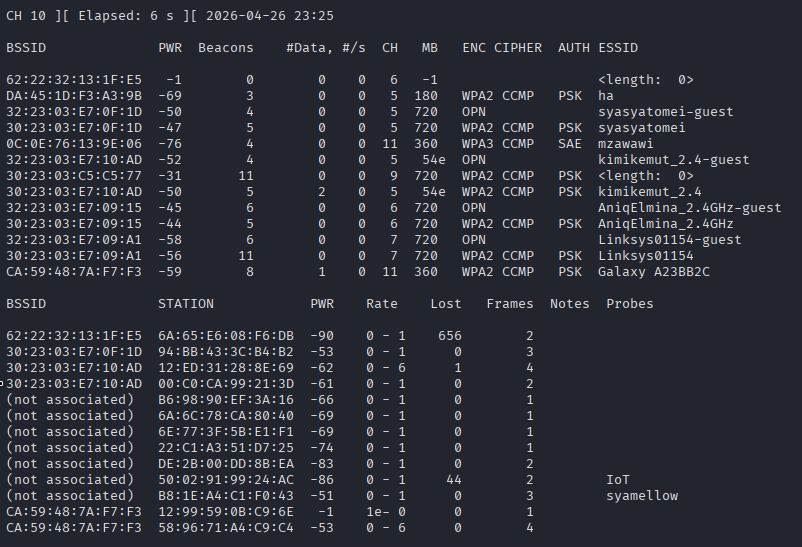
The Linksys router appeared with its ESSID hidden. Since SSID broadcast was disabled, the network name was not displayed. Instead, it appeared as:
<length: 0>or:
<hidden>The following information was recorded from the scan:
| Field | Description |
|---|---|
| BSSID | MAC address of the Linksys router |
| Channel | Wireless channel used by the router |
| Encryption | Wireless security type |
| ESSID | Hidden or blank |
Example:
BSSID              CH   ENC   ESSID
AA:BB:CC:DD:EE:FF  9    WPA2  <length: 0>
7.0 Packet Capture
After identifying the router BSSID and channel, packet capture was started on channel 9 using:
sudo airodump-ng wlan0mon -c 9 --write Reveal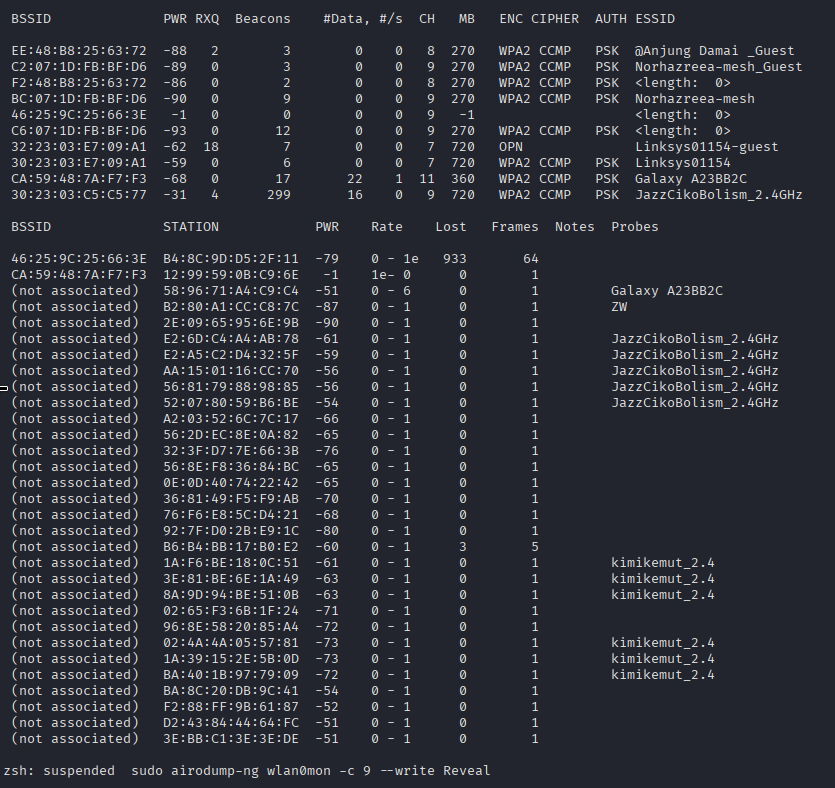
sudo airodump-ng wlan0mon -c 9 --bssid AA:BB:CC:DD:EE:FF --write RevealThe command options are explained below:
| Option | Function |
|---|---|
wlan0mon | Monitor mode wireless interface |
-c 9 | Captures only on channel 9 |
--bssid | Targets the selected router only |
--write Reveal | Saves the captured packets with the filename prefix Reveal |
While the capture was running, a client device was manually connected to the hidden Wi-Fi network.
8.0 Client Connection Process
A client device was used to connect to the hidden wireless network. The network was manually added using the following details:
| Setting | Value |
|---|---|
| SSID | HiddenLab |
| Security | WPA2-Personal |
| Password | Password12345 |
The client device was then connected to the hidden network while Kali Linux was capturing packets. During this process, wireless management frames were generated and captured.
The relevant frame types include:
Probe Request
Probe Response
Association Request
These frames may contain the actual SSID of the hidden wireless network.
9.0 Packet Analysis in Wireshark
The captured file was opened in Wireshark using:
wireshark Reveal-01.capA display filter was applied to show packets related to the Linksys router:
wlan.bssid == AA:BB:CC:DD:EE:FFIf additional packets were required, a wider filter was used:
wlan.ta == AA:BB:CC:DD:EE:FF || wlan.ra == AA:BB:CC:DD:EE:FF || wlan.bssid == AA:BB:CC:DD:EE:FFThe following Wireshark filters were useful for identifying management frames:
| Frame Type | Wireshark Filter |
|---|---|
| Probe Request | wlan.fc.type_subtype == 4 |
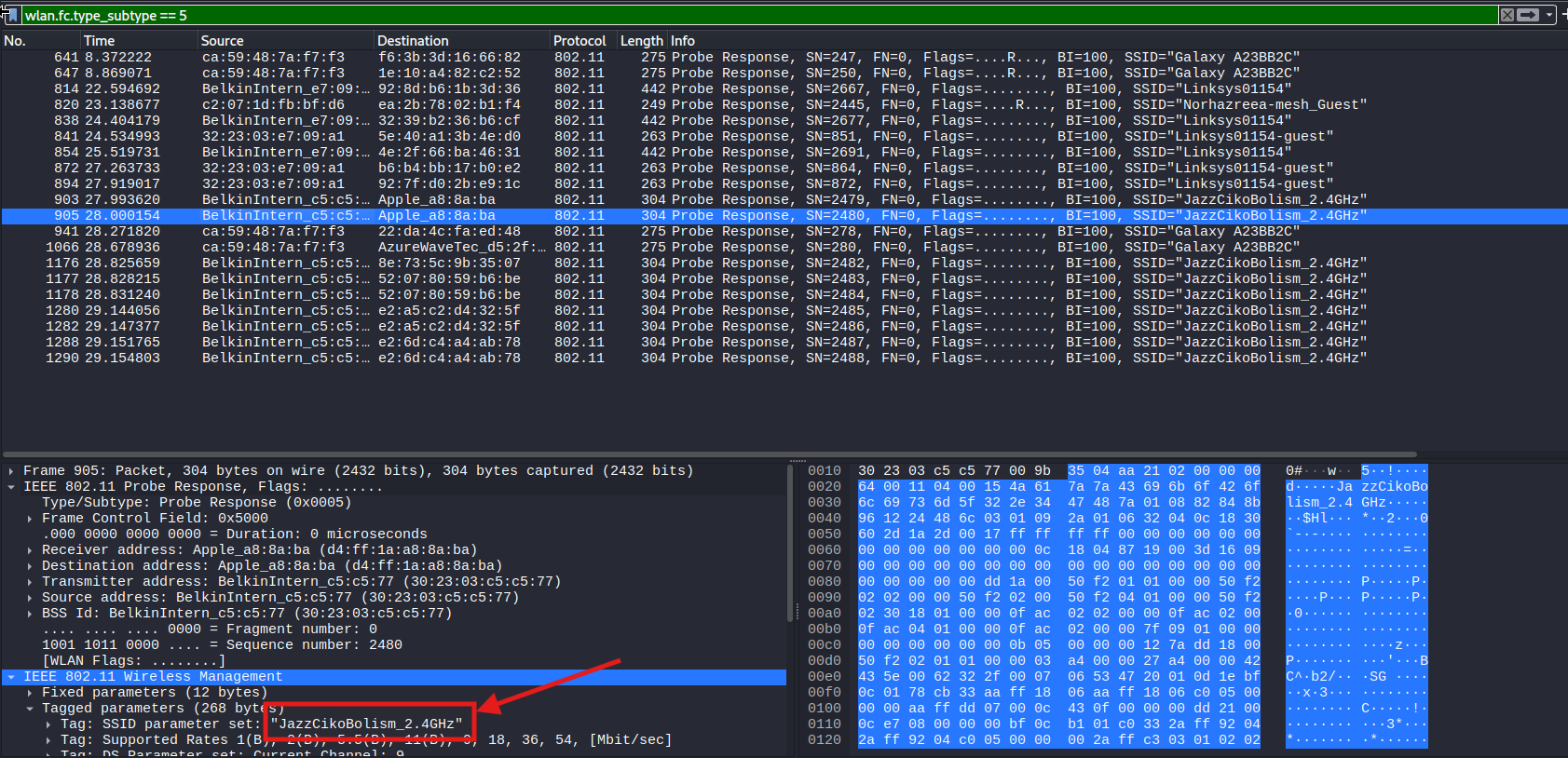
| Probe Response | wlan.fc.type_subtype == 5 |
| Association Request | wlan.fc.type_subtype == 0 |
The packet details were expanded using the following path:
IEEE 802.11 wireless LAN management frame
Tagged parameters
SSID parameter set
The hidden SSID was then visible inside the SSID parameter field.
10.0 Result
The hidden SSID was successfully identified from the captured wireless management frames.
Example result:
Hidden SSID discovered: HiddenLabThis confirms that disabling SSID broadcast does not completely hide a wireless network. The SSID can still be exposed when a legitimate client connects or reconnects to the access point.
11.0 Discussion
A hidden SSID only prevents the network name from appearing in normal beacon frames. It does not provide strong wireless security. When a client connects to a hidden network, the SSID may still be transmitted in management frames such as probe requests or association requests.
Therefore, hidden SSID configuration should not be treated as a security control. It only provides minimal obscurity and can be bypassed through passive wireless monitoring.
Proper wireless security should rely on stronger controls such as WPA2/WPA3 encryption, strong passwords, disabled WPS, and updated router firmware.
12.0 Troubleshooting
| Issue | Possible Cause | Solution |
|---|---|---|
| SSID does not appear | No client connected during capture | Reconnect a client while airodump-ng is running |
| Router not visible | Wrong channel selected | Confirm router channel and use -c 9 |
| No packets captured | Wrong interface used | Use wlan0mon, not wlan0 |
| Client connects but SSID not found | Client connected to 5 GHz | Disable 5 GHz and use 2.4 GHz only |
| Monitor mode not working | Network services interfering | Run sudo airmon-ng check kill |
| Wi-Fi unavailable after lab | NetworkManager was stopped | Restart NetworkManager |
To restore normal Wi-Fi functionality after the lab:
sudo airmon-ng stop wlan0mon
sudo systemctl restart NetworkManager
13.0 Conclusion
The lab successfully demonstrated that a hidden SSID can be discovered using wireless packet capture and analysis. Although the Linksys router was configured not to broadcast its SSID, the SSID was revealed when a client device connected to the network.
This shows that hiding an SSID is not an effective security measure. Strong encryption, secure passwords, disabled WPS, and proper wireless security configuration are required to protect a wireless network effectively.
Related Writeups


Authorized security practice only. These notes are for lab, CTF, and explicitly permitted environments.